Install and open JourneyLens
- Open
chrome://extensions, enable Developer mode, choose Load unpacked, and select the JourneyLens extension folder. - Pin JourneyLens to the Chrome toolbar. Open an ordinary HTTP or HTTPS web application; Chrome internal pages and the Chrome Web Store cannot be recorded.
- Click the JourneyLens icon. The extension opens in Chrome’s side panel beside the application.
- When recording for the first time, approve website access. JourneyLens needs this permission to inject the local recorder and survive page navigation.
chrome:// page, navigate to the application first.Record a journey
Start recording
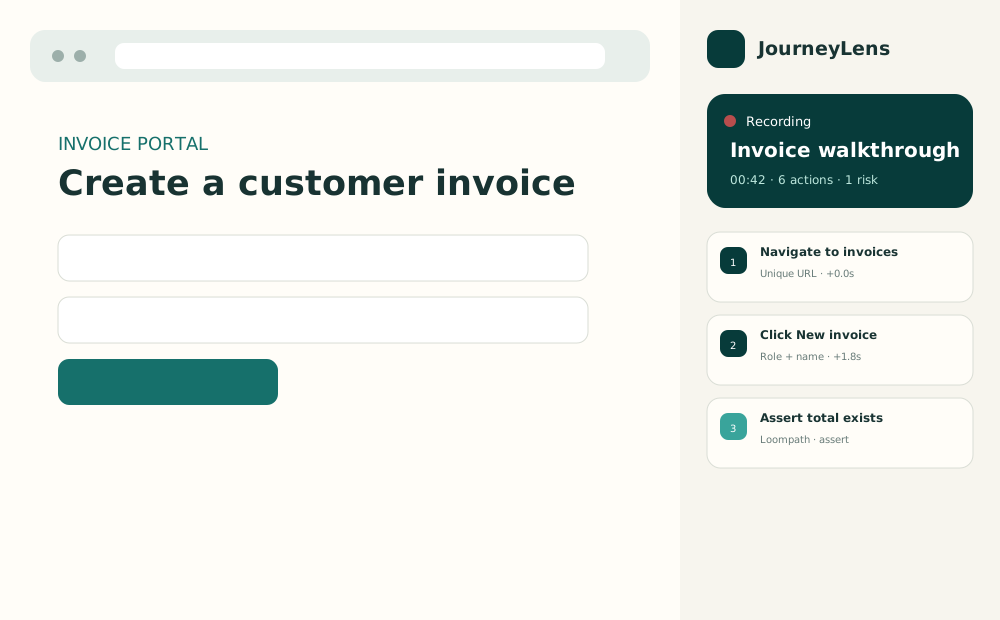
Open the journey library and select Record a walkthrough or the plus button. JourneyLens creates a new journey, records an initial Navigate step for the current URL, refreshes the page, and resumes recording automatically.
What is captured
- Navigation, standard links, router-managed links, buttons, inputs, text areas, selects, checkboxes, and radio buttons.
- Page URL and title, accessible role and name, semantic selector candidates, XPath fallbacks, viewport, and enabled state.
- Total journey duration, time between actions, visible-tab screenshots for non-input actions, page errors, resource failures, request status and timing, and performance entries.
- Password fields are stored as
{{PASSWORD}}rather than the typed value.
When recording is useful
Record checkout, onboarding, invoice creation, approvals, back-office administration, search and filtering, CRUD operations, customer-support procedures, compliance walkthroughs, or any repeatable browser task that should remain understandable and testable.
Stop recording
Choose Stop. JourneyLens saves the end time, diagnostics, network contract results, and performance result locally.
Manage journey steps
Run a specific step
Open a journey, select the Journey tab, and press the triangular Run button on a step. The step executes against the current page without replaying the whole journey. Use it when refining a selector or validating a single assertion.
Delete a step
Press the × button beside a step. The change is saved immediately. Remove accidental clicks, duplicate inputs, transient popups, or actions irrelevant to the intended process.
Add a delay
Press the clock button and enter milliseconds. The delay runs before the selected action and is included in local replay, Loompath export, and Playwright export. Use delays for animation, debounce, delayed rendering, or rate-limited interfaces.
Insert a Wait step
Press the plus control. Enter milliseconds for a time wait or an XPath beginning with // to wait for an element. Explicit element waits are more dependable than arbitrary delays and are ideal for asynchronous search results, dialogs, saved-state notifications, and lazy content.
Rename, folder, and tag
Every user can rename journeys. Pro adds folders and comma-separated tags for larger libraries, customer groupings, product areas, roles, and release suites.
Add logic from the webpage
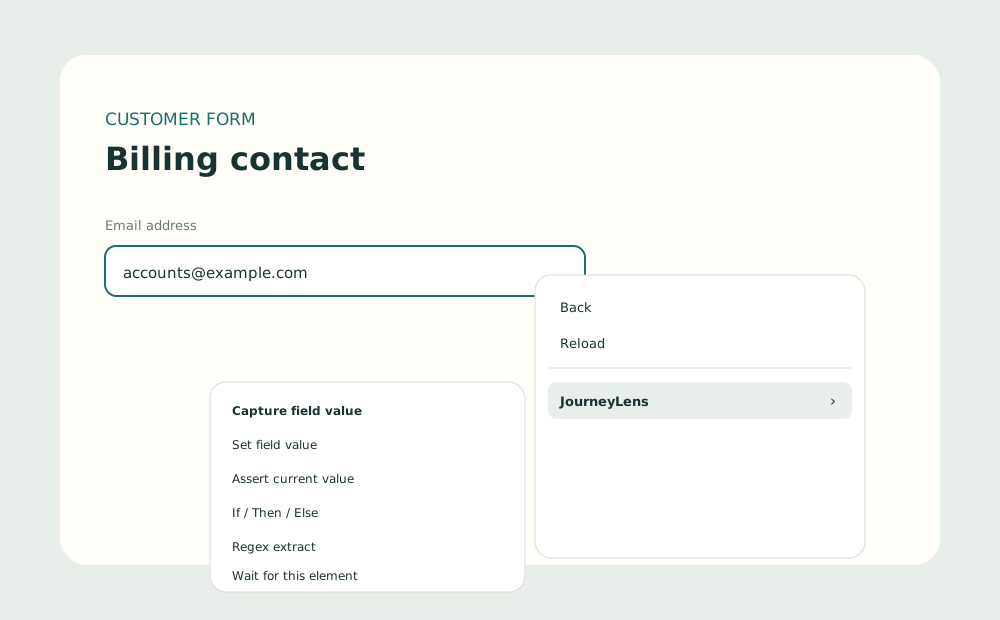
While recording, right-click a relevant field or control and open JourneyLens in Chrome’s normal context menu. The ordinary browser menu remains available.
| Command | What it records | Useful scenarios |
|---|---|---|
| Capture field value | A Loompath get_value step with a local variable. | Capture totals, statuses, IDs, names, or links for later assertions. |
| Set field value | A set_text step. | Prepare deterministic replay inputs or overwrite generated values. |
| Assert current value | A capture followed by an assert step. | Verify totals, validation messages, state, or generated references. |
| If / Then / Else | A capture and Loompath if_then container. | Optional onboarding, approval outcomes, role-specific experiences. |
| Regex extract | A capture and regex_extract step. | Extract order numbers, dates, currency, codes, or identifiers. |
| Wait for this element | An element-based wait step. | Wait for dialogs, results, saved banners, or loading completion. |
Robust selectors and fallback chains
JourneyLens ranks selectors in this order: unique IDs; test attributes such as data-testid; unique accessible role and name; link destination; form semantics such as name, label, placeholder, and ARIA; unique normalized text XPath; and structural CSS only as a last fallback.
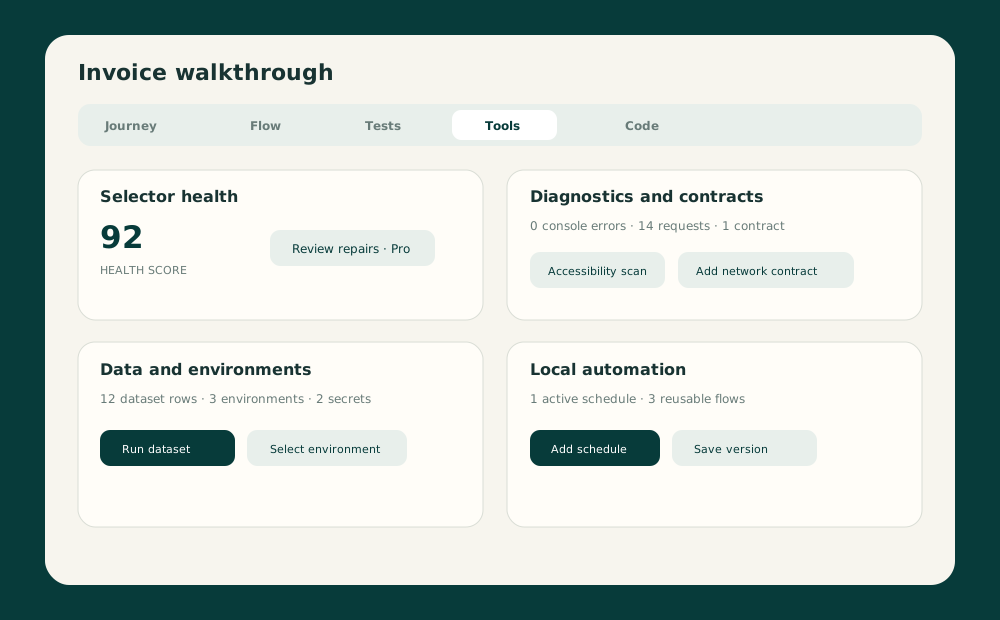
Every action retains multiple candidates. Local replay tries alternatives, and Loompath export includes executable XPath fallbacks. The Tools tab displays an overall selector-health score and fragile-action count.
Selector recommendations
A robust recommendation explains why a selector was chosen. Structural selectors remain flagged so the application team can add a stable test attribute when appropriate.
Replay, diagnose, and retain evidence
Open a journey and select Replay. JourneyLens returns to the recorded start URL, skips the duplicate initial navigation action, runs each step in order, honors delays and waits, and stops on the first failure unless the flow allows continuation.
Failure diagnosis
Failures include the action ID, attempted selector, missing-element diagnosis, assertion evidence, duration, request and resource evidence, page errors, and the most recent screenshot data available to the journey.
Local history
JourneyLens stores recent run status, duration, and step results. Free retains a configurable local history. Pro adds versions and extended organization.
Flowchart and tests
The Flow tab draws the recorded process with time between steps. The Tests tab generates a happy path, alternative paths, selector recommendations, accessibility assertions, and test-data requirements.
Every Free feature
Three active journeys and unlimited archives
Free users can keep three journeys active. Archive a journey from its Tools tab to free an active slot without deleting the recording.
Unlimited recording and manual replay
There is no recording-minute or manual-run credit. Everything executes in the local browser.
Starter templates
From the library choose Templates, then start from Login, Onboarding, Checkout, CRUD, or Search and filter. Templates create editable draft journeys.
Step controls
Edit the journey name, run or delete individual actions, and add waits and delays.
Loompath and Playwright export
Export Loompath 2.0 JSON or a Playwright TypeScript test. JourneyLens metadata remains additive so Loompath can normalize the workflow while retaining QA evidence.
Basic diagnostics
JourneyLens records JavaScript errors, console warnings and errors, resource failures, fetch status and timing, resource timing, transfer sizes, and navigation timing during the explicit recording window.
Basic accessibility
Run Accessibility scan in Tools to find missing image alt text, missing interactive names, missing form labels, and inspect keyboard focus order.
Sensitive-field redaction
Password inputs are replaced with placeholders. Generated reports redact commonly named password, token, secret, authorization, API key, and cookie fields.
Timing, flowchart, and reports
Review total duration, per-action timing, process flow, test cases, edge cases, Markdown reports, selector guidance, and local evidence.
Activate and test Pro
Open the Plan screen using the Free/Pro button in the header. Enter a production Lemon Squeezy license and select Activate. JourneyLens validates the returned store, product, and variant identifiers before enabling Pro.
Development builds expose Enable 24h Pro test. This creates a random local development key, does not contact Lemon Squeezy, and expires automatically. Production packages must disable temporary development licensing.
Every Pro feature
Unlimited organization
Keep unlimited active journeys. Add folders and tags, save a complete journey as a reusable flow, and insert that flow into another journey. Use reusable flows for login, tenant selection, setup, cleanup, and navigation shared across suites.
Smart local selector repair
Open Tools and choose Review repairs. JourneyLens presents ranked alternatives already captured from the DOM. Approve an alternative to promote it to the primary selector without uploading the page or action.
Data-driven replay
Choose Set CSV / JSON data and paste CSV with a header row or a JSON array. Choose Run dataset to replay once per row. Use {{columnName}} placeholders in action values. Results are stored per row with common secret fields redacted.
Environment profiles
Add named base URLs such as Local, QA, Staging, or Production. Select an environment on a journey to replace the recorded origin while preserving paths, queries, and fragments. This avoids duplicating the test for every deployment.
Encrypted local secrets
Choose Add encrypted secret, enter a name, value, and master password. JourneyLens derives an AES-GCM key using PBKDF2 and stores only salt, IV, and ciphertext. The master password is never saved.
Visual baselines and masks
Capture a visible-tab baseline from Tools. Add CSS selectors for known dynamic regions. After replay, JourneyLens records whether the current screenshot changed from the approved local baseline. Use this for layout, missing-component, and content-regression review.
Accessibility regression
Choose A11y baseline to save current findings and focus order. Later scans isolate findings not present in that baseline. This is useful for release review where existing debt is tracked separately from new violations.
Network contracts
Add a URL substring, expected status, and maximum duration. During recording JourneyLens observes bridged fetch requests and evaluates matching calls. Use contracts for submit endpoints, pricing services, search APIs, and duplicate-call investigation.
Local fetch mocking
Add a URL pattern and JSON body. During JourneyLens replay, matching page fetch() calls receive the local response. Playwright export creates route mocks for the same configuration. Use mocks for errors, empty states, slow-service alternatives, or unavailable dependencies.
Performance budgets
Set maximum journey duration and slow-resource thresholds. JourneyLens evaluates the recording and exports the total-duration assertion to Playwright.
Local schedules
Choose Add schedule and enter an interval. Chrome alarms open the start URL in a background tab on this device, replay the journey, store status, optionally close the tab, and notify on failure. Chrome and the device must be available. Choose Pause this journey to disable its schedules.
Versions and restoration
Choose Save version, enter a label, and continue editing. Recent snapshots appear under Local history and can be restored without losing the version list.
Engineering-ready reports
Export Markdown for Jira or GitHub, or export HTML and print it to PDF. Reports include steps, timing, selector risks, diagnostics, accessibility, datasets, contracts, budgets, test data, and explicit local-only evidence.
Journey packages for internal training
Export an individual journey
Open a journey and choose Export JourneyLens. The .journeylens.json package preserves actions, logic, selectors, timing, screenshots, assertions, diagnostics, baselines, network configuration, and training metadata.
Export or import a library
From the library choose Export library or Import journeys. Imports accept an individual journey package or library package and assign fresh IDs so existing client journeys are not overwritten.
Redaction behavior
Sensitive action values become {{SECRET}}, their screenshots are removed, common secret fields are redacted in datasets and results, and licenses plus the encrypted vault are excluded.
Training scenarios
Distribute approved onboarding, invoice processing, customer-support, finance, compliance, procurement, or administration walkthroughs to Pro-owning clients. Recipients can review the flow, replay it against their permitted environment, run specific steps, and inspect expected evidence.
Export formats
| Format | Plan | Purpose |
|---|---|---|
| Loompath 2.0 JSON | Free | Reproduce the browser process in Loompath with compatible steps and XPath fallbacks. |
| Playwright TypeScript | Free | Move the semantic journey into a code-based test suite. |
| Markdown QA report | Free | Copy evidence and reproduction guidance into issue trackers. |
| HTML / printable PDF | Pro | Deliver a polished local report without uploading evidence. |
| JourneyLens journey/library | Pro | Transfer editable QA and training journeys between Pro users. |
Safety and privacy practices
- Record test accounts rather than real customer credentials.
- Review imported workflows before replay.
- Do not schedule production by default; confirm the selected environment.
- Pause schedules before maintenance or credential rotation.
- Inspect screenshots and datasets before sharing packages.
- Use encrypted secrets and never include the master password in a journey.
- Remove the temporary Pro flag before store publication.
Troubleshooting
JourneyLens cannot find a web tab
Use a normal HTTP or HTTPS page, focus its browser window, reload the extension, and reopen the side panel. Chrome internal pages cannot be injected.
Clicks are missing
Reload both the extension and page. Link clicks are captured on pointer-down before application routers execute. Nested icons and role-based links are supported.
A selector fails
Run the step individually, inspect selector health, and use Pro repair suggestions. Prefer role/name, link destination, labels, names, and test attributes over positional CSS.
A local schedule did not run
Confirm Chrome and the device were available, website access remains granted, the schedule is enabled, and the journey has a valid start URL.
Pro activation fails
Confirm the billing configuration contains the correct Lemon Squeezy store, product, and variant IDs. A license from another variant is intentionally rejected.
Need help?
Email support@builtbykris.com.